

 By

You don't need an X account, an app or a camera. X Calls, the calling service X started testing in October 2026, lets a guest open a call link (or type a short code at call.x.com), enter a name and join from a phone or computer browser. Only the person hosting the call needs an X account. Below is every screen you'll see, using our own live call line as the example.
What X Calls is, in one minute
X Calls is X's meeting and calling service. It lives at call.x.com and works in the browser on a computer or a phone. It has been in beta since early October 2026, so X is still switching some features on account by account.
It is separate from the older calls inside X direct messages, which need an X account on both sides. X Calls doesn't: its start page says it plainly, “Join a call. No account needed.”
- Host
- needs an X account to start or schedule a call
- Guest
- needs only the link or code, a name and a browser
- Price
- X hasn't announced one; joining costs nothing during the beta
- Devices
- computers and phones, in Chrome, Safari, Edge and Firefox
Step 1: Open the link, or type the code
Most people get a link that looks like call.x.com/abc-def-ghj. Open it and you go straight to that call's preview screen.
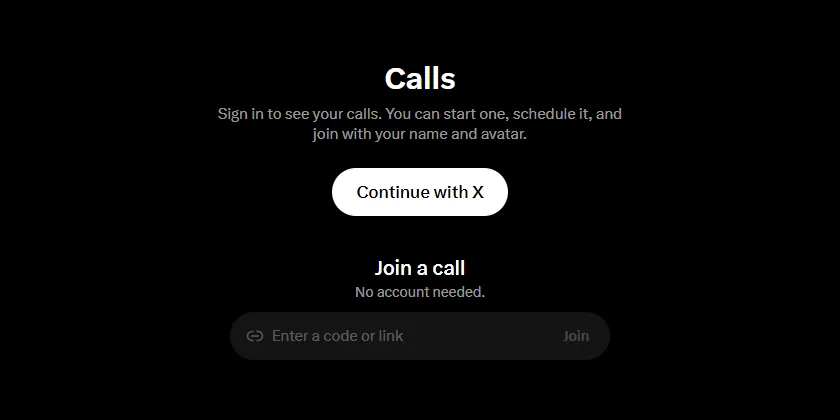
If you were given a code, go to call.x.com and type it under “Join a call”. You can ignore “Continue with X”: that's for hosts, and for people who want to join with their X profile.
Step 2: Type a name and check your microphone
Before you're in, X shows a preview screen that says “Check your camera and mic before joining”. Type the name you want the host to see. A first name is enough.
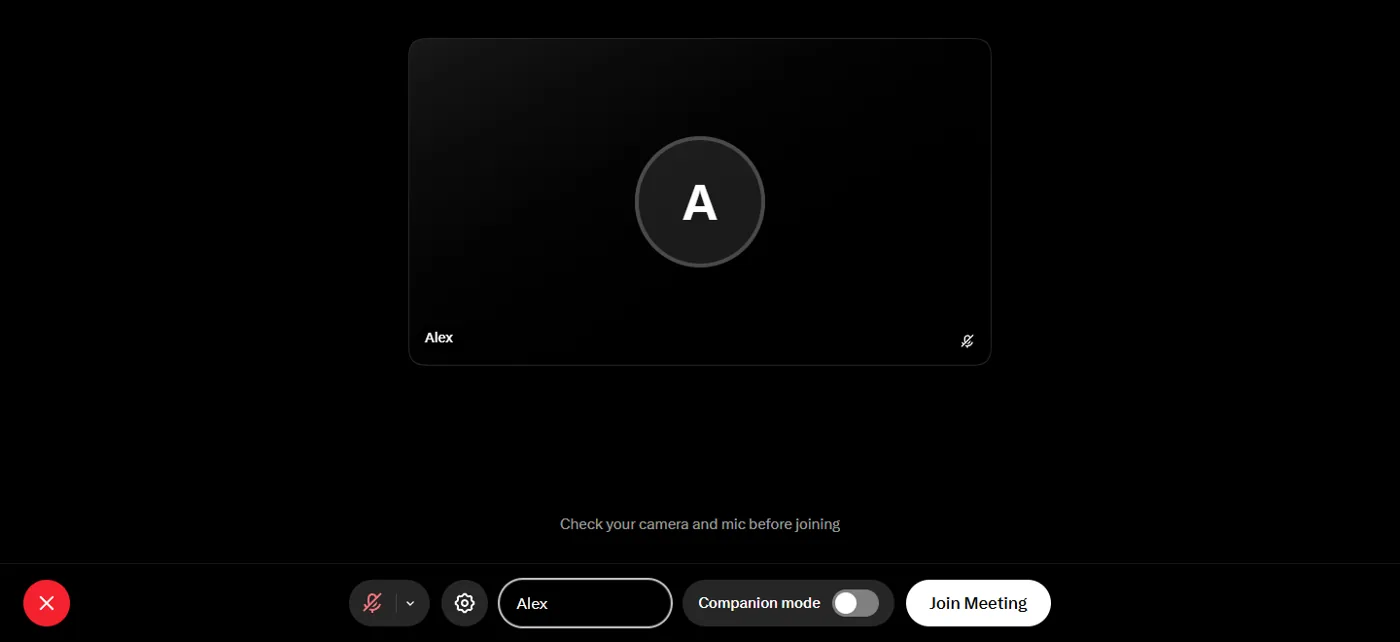
Your browser asks to use your microphone. Allow it, or nobody will hear you. The microphone can start muted on this screen, so check that the microphone button isn't crossed out before you join. If the call was opened as a voice call, X doesn't ask for your camera at all.
Step 3: Join, or ask to join
What the button says depends on how the host set up the call. X gives hosts three choices for who can join:
- Everyone
- anyone with the link can join. Your button says “Join Meeting”.
- Verified Organization
- only verified people from the host's organization can join, so you'd be asked to log in.
- Only people approved by an admin
- everyone waits until the host lets them in. Your button says “Ask to Join”, then you see “Waiting for the host to let you in…”.
If you're waiting, stay on the page. The host sees your name with an Admit button. If the host declines, X tells you so.
Voice only: how to keep your camera off
- On the preview screen, tap the camera button so it shows a line through it
- On a voice-only link there's no camera button at all, and X never asks for camera access
- In the call, X's own reminder holds: you can turn your microphone and camera off any time
If something doesn't work
| What you see | What to do |
|---|---|
| Nobody can hear you | Check that the microphone button isn't crossed out. Then allow the microphone for call.x.com (the icon to the left of the address bar, then Microphone: Allow) and reload the page. |
| “Your microphone is in use” | Another app is using it, often another call. Close that app, then tap Try again. |
| The link opened the X app, not the browser | On an iPhone with the X app installed, the app is set to open call.x.com links. Join from the app, or paste the link into Safari's address bar. |
| “This call link no longer works” | The host turned the link off or reset it. Ask them for the new one. |
| “This call has ended” | The call is over. Ask the host when the next one starts. |
| “Are you still there?” | X shows this when you've been alone or inactive for a while, and takes you out of the call within 2 minutes unless you tap Stay. |
Is it private?
You choose the name you show, you don't sign in, and you can keep the camera off. The host and other guests see that name and hear your voice.
Two things to know. X's help center says group calls in direct messages aren't end-to-end encrypted yet, and X hasn't published a separate security statement for X Calls. Treat it like a normal phone call: don't read out passwords or card numbers.
Try it with us
We keep a voice line open on X Calls on weekdays. It's a quick way to ask about a website without writing anything down, and the button below opens the call voice-only.
Common questions
Do I need an X account to join an X call?
No. Guests join with the link or code, a name and a browser. Only the host needs an X account.
Is X Calls free?
X hasn't announced pricing. During the beta, joining a call costs nothing.
Can I join X Calls from my phone?
Yes, in the phone's browser. On an iPhone with the X app installed, the link may open in the app instead, and you can join from there.
Can I join without my camera?
Yes. Turn the camera off on the preview screen, or join through a voice-only link, which doesn't ask for the camera at all.
Is X Calls the same as calling someone in X messages?
No. Calls in direct messages are between X accounts, and X's help center says you can only call someone who has messaged you before. X Calls works with a link, and guests don't need an account.
Sources
Your site could be next on screen.
See your prices, pick a package, and send us a request.